Firmware: The Software Running Beneath Your Apps
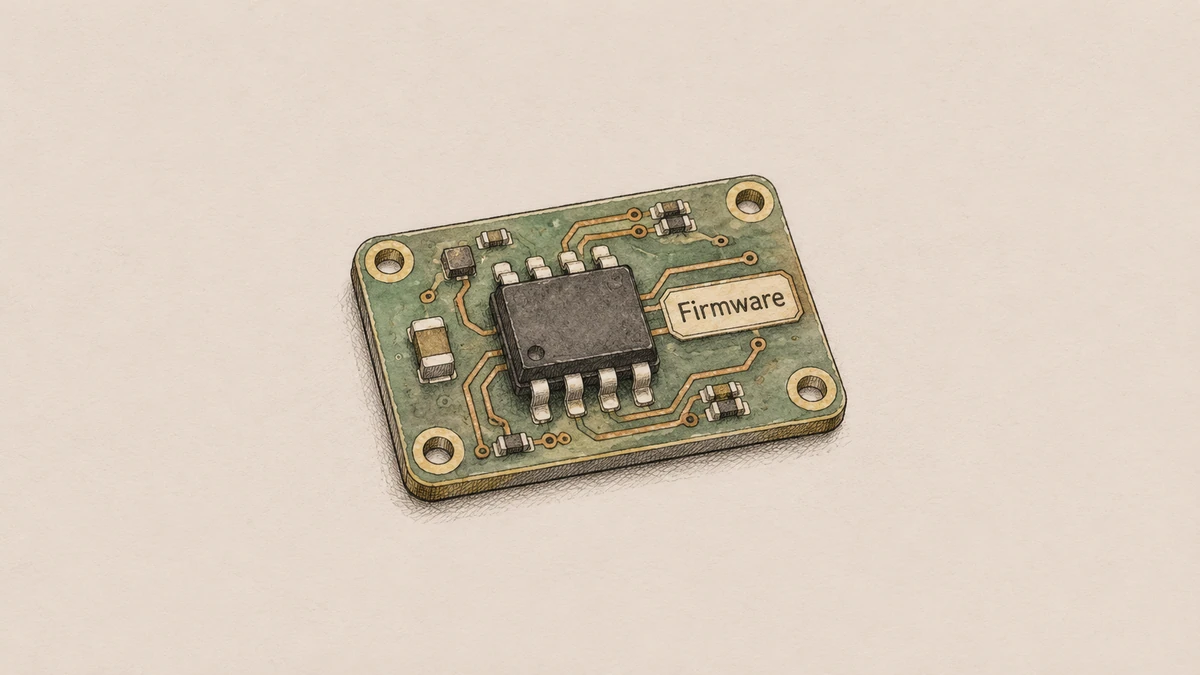
Before your computer can load its familiar desktop, it needs instructions for getting the hardware started. Some of those instructions live in firmware, software tied closely to the device itself.
Firmware tells a device or component how to operate. It's commonly stored in a memory chip that keeps its contents when the power is off, rather than disappearing when you unplug the device.
That storage is called nonvolatile memory; flash memory is one common kind. “Built in” doesn't necessarily mean unchangeable, because many devices can replace their firmware through an update.

- Rescue a board with a corrupted BIOS by rewriting the chip directly.
- Clip onto the chip in place, with no soldering needed.
- Save a copy of a chip's contents before you change anything.
The software beneath the usual software
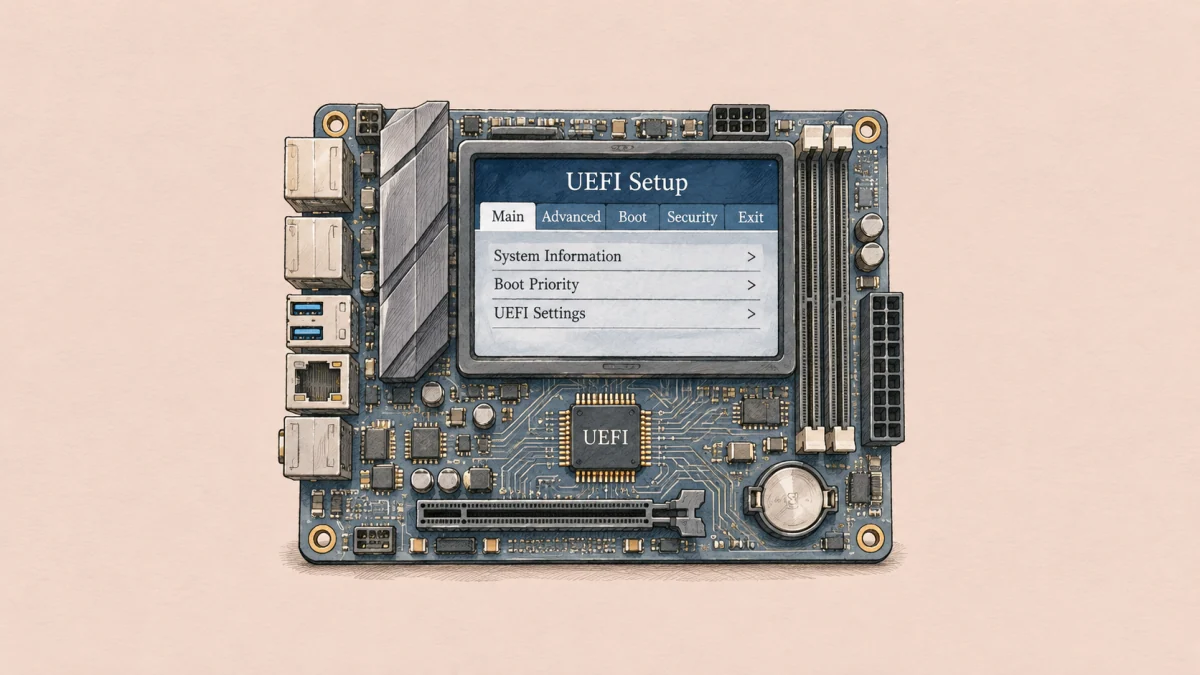
On a PC, startup firmware prepares hardware and helps load the operating system, the software that manages the computer and runs your applications. BIOS and UEFI are names you'll encounter for this startup role, with UEFI used on modern PCs.
Dell's BIOS and UEFI guide explains this handoff. A web browser depends on a working operating system; the operating system depends on earlier steps that got the machine ready.
Firmware isn't limited to startup, however. Components such as storage drives and network adapters can have their own firmware that helps them do their jobs while the computer is running.
The National Institute of Standards and Technology's firmware guide distinguishes startup code from firmware that continues operating afterward. One computer can contain several pieces of firmware, rather than one program controlling everything.
Why a firmware update can matter
Firmware can contain mistakes and security weaknesses, just like other software. Updates may fix those problems or improve compatibility, meaning how well the device works with other components.
Dell's update guidance includes security fixes, bug fixes and hardware support among the reasons for releasing new versions. An update isn't automatically a speed boost; its release notes should explain what changed.
The security stakes can be substantial because firmware operates close to the hardware. The National Institute of Standards and Technology warns that attacks against it can give malicious code lasting access or leave a system unable to operate.
An ordinary application update doesn't necessarily update every component's firmware. Check the device maker's documented update method rather than assuming that one “up to date” message covers the entire machine.
The Hidden Software Inside Your Electronics
Give the update the right conditions
The correct process depends on the device, but a few checks help you follow its instructions:
- Match the exact model. Use the manufacturer's official support service or the update channel it recommends, not a download chosen just because its name looks similar.
- Back up important files. Follow any instructions about recovery information, including keys needed to unlock encrypted storage, which protects saved data from unauthorized reading.
- Keep power stable. Follow the manufacturer's battery and power requirements, and don't force a shutdown during installation.
- Allow the required restart. Some updates finish outside the normal desktop, so wait for the process to complete as directed.
For example, Dell documents firmware delivery through its own tools and, for supported updates, Windows Update. You don't always need to find and install a separate file by hand.
Afterward, use the maker's instructions to check the installed version. The name “firmware” tells you where the software fits in the device; the version and support information tell you whether yours has received the relevant fixes.
UEFI: The Handoff Before Your Operating System Starts
Boot Record Infectors: Malware That Gets an Early Start
Patch Management: Getting a Security Fix Onto Every System That Needs It
QUOTE:
"Amateurs hack systems, professionals hack people."