Data Loss: Can You Get Your Files Back?
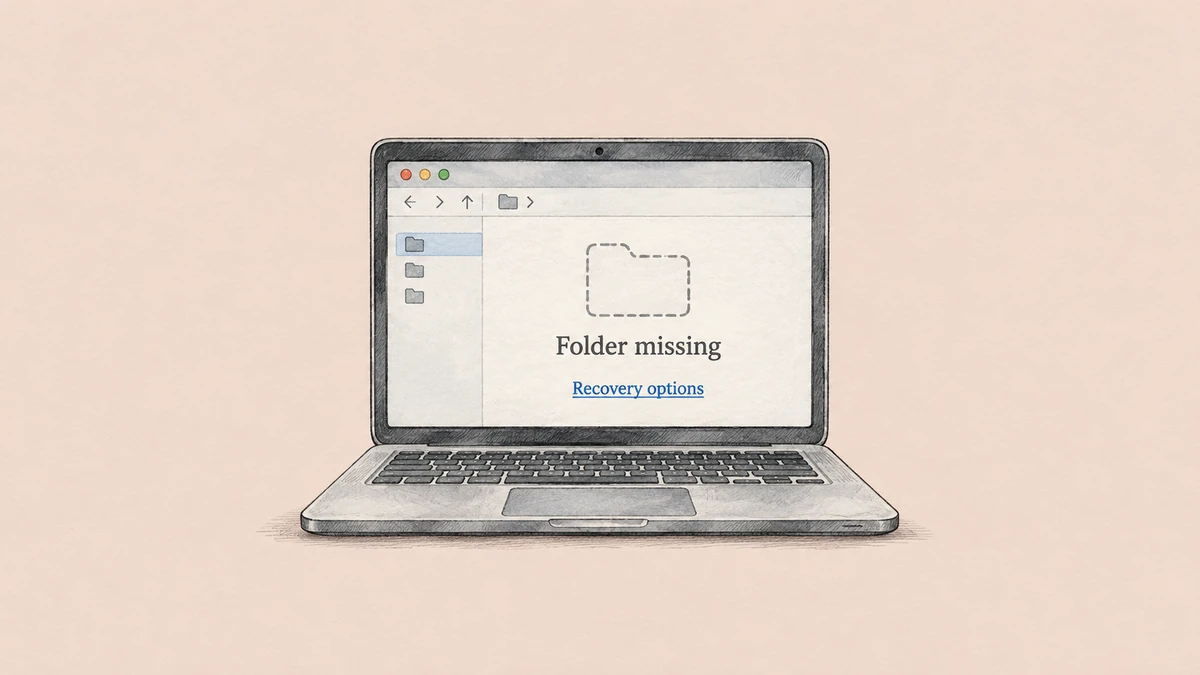
Deleting a synchronized folder can make it disappear from your laptop and the cloud almost at once. That doesn't always mean it's gone for good, but it shows why another synchronized copy isn't a complete recovery plan.
Data loss happens when stored information is deleted, damaged, or otherwise lost. Recovery may still be possible; permanent loss means no usable copy can be recovered.
Hardware failure, mistaken deletion, software problems, and destructive attacks can all cause it. Cloud storage—keeping files on a provider's computers—also needs recovery arrangements when something goes wrong.
Backup or Disaster Recovery: What's the Difference?
First, establish what's missing
A file that won't open isn't automatically destroyed. It may have moved, belong to a different signed-in account, or be temporarily unreachable because a service is down.
Check the location, account, and error message before starting repairs. If you deleted the file, look in the device's trash or recycle bin and the cloud service's own recovery area.
Microsoft's OneDrive recovery guide explains that deleted files may be restorable for a limited period. Files deleted from the cloud may be absent from the computer's recycle bin, so checking only the laptop can miss a recovery option.
Version history keeps earlier saved versions of a file. If a document was overwritten or damaged rather than deleted, a previous version may contain the material you need.
If you're trying to recover a deleted file from a local drive, minimize further use of that drive. Microsoft's file-recovery guidance explains that new writes can overwrite space that still contains recoverable data.

- Keep every photo and file on a box you own, and reach them from anywhere.
- Let backups run on their own so one dead laptop doesn't take your files with it.
- Add two drives and a failed disk no longer means lost files.
Recovery tools can't promise success. On a work device, involve the support team before running repairs, especially if files are disappearing repeatedly or an attack may still be active.
Synchronization carries changes—including mistakes
Synchronization, often shortened to sync, keeps selected files in step across locations. Deleting a file in a synchronized folder can tell the service to delete its other synchronized copies, too.
For example, Microsoft documents that deleting a file from the OneDrive folder on your computer can delete it from OneDrive as well. The service is carrying out the change you requested, even if you didn't intend its full reach.
Cloud services may offer previous versions and deleted-file recovery, but those features have limits. The British National Cyber Security Centre recommends an independent copy of critical data in another safe place or service.
The 3-2-1 Rule for Backups You Can Count On
Decide how far back you can afford to go
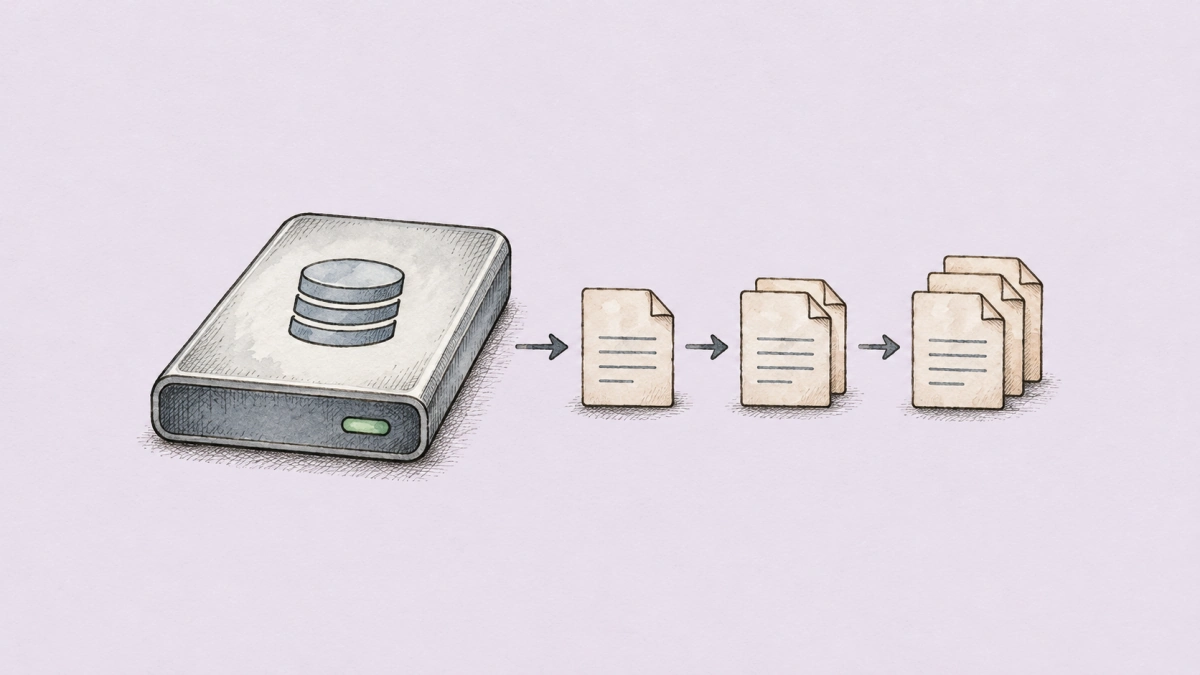
A backup is a copy kept so information can be restored after a problem. Its usefulness depends on what's included, when it was made, and whether you can actually recover it.
Suppose the last usable backup was made at midnight and a failure happens at four in the afternoon. Restoring it may recover yesterday's work while leaving today's changes missing unless another recovery source contains them.
How much recent work could you reasonably recreate? That answer helps determine backup frequency, while the time you can tolerate being without the files shapes the recovery arrangements.
New Zealand's National Cyber Security Centre explains these choices in its backup planning and testing guidance. It also recommends practicing different restores, rather than relying only on a message saying a backup finished.
Keep older versions long enough to recover from problems discovered late. A fresh backup of an already damaged file may faithfully preserve the damage.

- Back up a laptop in minutes, with read speeds up to 1,000MB/s.
- Toss it in a bag without worry: no moving parts and drop protection up to two meters.
- Carry a second copy of your files wherever you go.
Keep a failure from reaching every copy
Store recovery copies so one event can't easily destroy them all. A drive beside the laptop may share its exposure to theft or fire, while a permanently connected backup may be reachable by harmful software.
Use protected arrangements, such as an offline copy disconnected from the system or a cloud backup designed to resist alteration and deletion. For an encrypted backup, which is unreadable without its password or digital key, keep that recovery information safely available too.
Test by restoring a sample to a separate location and checking its contents. A recovered photo should display properly, and a spreadsheet should contain the expected values—not just a familiar filename.
Choose one important folder and try that test before you need it. Finding a missing folder in your backup settings today is much easier to fix than discovering it after the original is gone.
Incremental Backups: Save the Changes, Understand the Restore
Disaster Recovery Plans: How to Bring Your Systems Back
5 Reasons Why Data Backups Are Critical

QUOTE:
"Amateurs hack systems, professionals hack people."