Encrypt Your Data: Protect the Right Copies and Keep Access
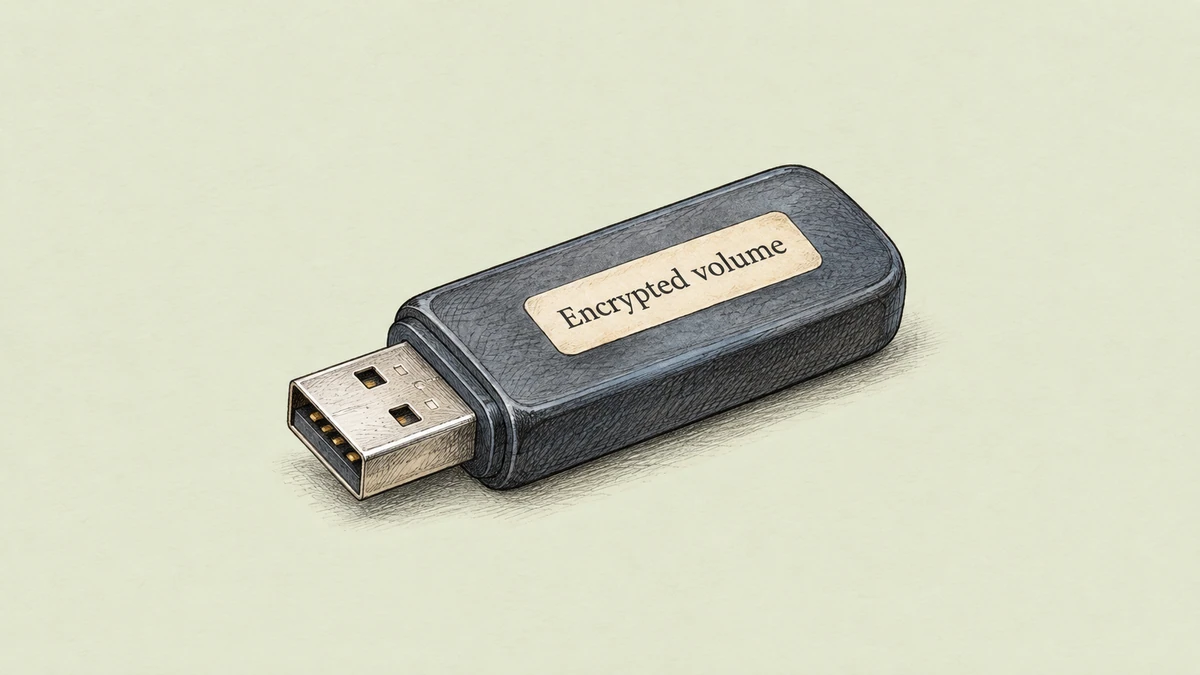
Encrypting a laptop's drive can protect its files if the device is stolen. It doesn't automatically give the same protection to a copy you email, upload or save on a separate drive.
To encrypt is to transform data using a mathematical method and a key—a data value used by that method. Decryption uses the appropriate key to recover the usable information.
The 3-2-1 Rule for Backups You Can Count On
Choose what you're protecting
Before turning on a setting, identify the information and where it lives. An encryption feature has a scope: the drive, file, connection or conversation it protects.
| What you want to protect | What to examine |
|---|---|
| Files on a lost laptop | Device or drive encryption, plus how access to the keys is controlled |
| A document you're sharing | File encryption or the sharing service's protection and access rules |
| Information traveling over a network | Encryption covering the connection or the message itself |
The UK's National Cyber Security Centre's data-security guidance distinguishes protection at rest—while stored—from protection in transit, while traveling. It also calls for protecting copies kept in other places.
A work device may already have encryption managed by your employer. Check its status and the organization's recovery process before changing those settings.
Check the built-in device controls
On an eligible Windows device, open Settings, then Privacy & security → Device encryption. Microsoft's instructions explain how to check or enable the feature, which uses BitLocker to protect the operating-system drive and fixed drives.
The option can be missing if the device doesn't support it or you're signed in without administrator rights. Device Encryption is available on some Windows Home devices; manually managed BitLocker Drive Encryption has different edition requirements.
On a Mac, look under System Settings → Privacy & Security → FileVault. Apple's FileVault guidance covers the setup and recovery choices for protecting the startup disk.
Use the tool's status display to confirm that protection is on and any required setup has finished. A password on your login screen, by itself, doesn't tell you whether the drive is encrypted.

- Carry sensitive files on a drive that stays locked without your PIN.
- Unlock it on any computer, with no software to install.
- Lose it without losing sleep: the contents are encrypted in hardware.
Save a way back in
A recovery key provides another way to unlock protected data when the usual route fails. Keep it somewhere secure that you can reach without first opening the device or drive it unlocks.
For BitLocker, Microsoft recommends verifying that the recovery-key backup exists and is accessible. Depending on the setup, it may be associated with your Microsoft account or managed by your organization's support team.
Don't keep the only paper or removable-drive copy beside the laptop it unlocks. Someone who steals both could gain access, and losing both could leave you without your recovery route.
Encryption doesn't replace a backup of the files themselves. A recovery key won't rebuild a failed drive or restore a document you've deleted.
Follow the copies after they're unlocked
Once you're signed in and an application can read a file, drive encryption alone doesn't stop that application from reading or copying it. Malicious software running with sufficient access may be able to do the same.
Similarly, encrypting an upload's network connection doesn't establish whether the receiving service can read the document. Ask where decryption happens and who controls the keys if you need to keep contents private from the service itself.
After setup, confirm three things: the intended data is covered, the recovery information is available, and your backup can restore the files. Those checks turn an encryption setting into protection you can still use when something goes wrong.
Encryption Keys: The Small Secrets Your Files Depend On
Data Loss Prevention: What Gets Blocked—and What Doesn't?
Confidentiality: Who Gets to Read Your Information?
QUOTE:
"Amateurs hack systems, professionals hack people."