Can You Run AI on Your Own Computer?
Running AI locally means your own computer performs the calculations that produce an answer, instead of sending the task to a remote model. You can try it with a suitable downloaded model and an app that runs it, without building a model yourself.
The appeal is practical: offline use, more control over your files and a chance to experiment without sending every prompt to a cloud service. The tradeoff is that your computer supplies the memory, processing power and storage.
The App and the Model Come Separately
The app handles tasks such as loading the model, displaying the conversation and using your computer's hardware. The model file contains the learned numerical settings that generate responses.
Training those settings from scratch can require enormous resources. Running an existing model, called inference, is a different job and can be possible on an ordinary computer when the model is small enough.
LM Studio offers a desktop interface for downloading and running supported models. Ollama is another option, commonly used to run models locally and connect them to other software.
Neither name guarantees that every feature stays on your device. Both local and cloud capabilities can exist in the same product, so you need to check the model and tools selected for the conversation.
Memory Matters More Than a Large Empty Drive
Storage holds the model file when it isn't running. Working memory holds the data needed while it runs, and a computer can have plenty of free disk space while still struggling to load a model.
A graphics processor, or GPU, can speed up supported calculations. Its memory may be separate from the computer's main memory, although some systems use shared memory.
LM Studio's system requirements recommend at least 16 GB of memory for common setups and describe supported processors. That's application guidance, not a promise that every model will run well on a 16 GB computer.
Larger models and longer conversations can require more resources. A smaller model may be more responsive on your machine, while making different tradeoffs in the quality of its answers.
You may also see “quantized” downloads. Quantization stores model values with reduced numerical precision to use fewer resources, potentially changing output quality; the smallest download isn't automatically the best choice for your task.
Machine Learning in 100 Seconds
A First Trial With LM Studio
Start with a harmless task, such as rewriting a paragraph you created for the experiment. You don't need private records to find out whether the app works on your computer.
- Download LM Studio from its official website and check the current system requirements for your operating system.
- Use its model browser to choose a small text model indicated as suitable for your available memory, then download it and any required runtime.
- Load the downloaded model and send a simple prompt, without enabling web search, outside tools or a remote provider.
- Disconnect from the internet and try another prompt to check that this conversation can operate offline.
LM Studio's offline-operation guide says downloaded models and local document processing can work without connectivity. Searching for models, downloading software and checking for updates are different activities that use the network.
The offline trial checks that the selected function works without a connection. It doesn't prove that every feature or later configuration change will keep data local when you reconnect.
If you use Ollama, its FAQ describes a local-only setting that disables cloud models and web search. Follow the current instructions for your operating system and restart the app as directed after changing the setting.
Keep the Whole Route Local
A downloaded model can still be connected to a tool that sends data elsewhere. Web search, remote document services and third-party extensions each need their own review.
LM Studio's privacy policy distinguishes local operation from cloud features. Read that distinction before assuming a desktop app and a private computer mean every task happens on the computer.
Local files also need ordinary protection. Other people with access to the device, malware or a cloud backup service may be able to reach saved chats and documents, depending on your setup.
If you enable a local model server, keep it accessible only where needed. Ollama's documentation says its default server binds to the computer itself; changing that setting can expose it to other machines.
Try Your Existing Hardware Before Buying More
Test a few small models against work you can evaluate. Note speed, accuracy and whether the machine remains comfortable to use for other tasks.
Model downloads can consume substantial disk space, especially if you keep several versions. An external drive can help store files or backups, but it doesn't add the working memory needed to run a larger model.
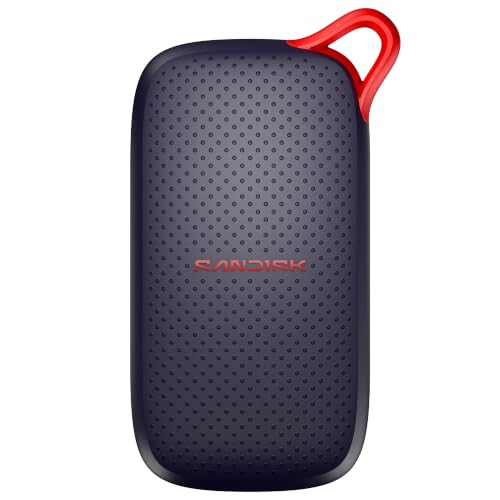
- Back up a laptop in minutes, with read speeds up to 1,000MB/s.
- Toss it in a bag without worry: no moving parts and drop protection up to two meters.
- Carry a second copy of your files wherever you go.
Local operation changes where the computation happens, not whether the answer is correct. You still need to check facts, review generated code and read the model's license before uses that may have restrictions.
If a small model handles your real task acceptably, you've learned something useful without a hardware purchase. If it doesn't, identify whether the problem is speed, memory or answer quality before deciding what to change.
Is Your AI Chat Private? The Settings That Matter
Why AI Makes Things Up—and Sounds So Sure About It
Machine Learning and Evolution: When 98 Percent Is a Failure
QUOTE:
"Amateurs hack systems, professionals hack people."